Budget
The budget for a project consists of the budget allocated to control account work packages or planning packages and any summary level planning packages scheduled to accomplish work scope defined in the project's work breakdown structure (WBS) as well as related statement of work (SOW) or statement of objectives (SOO). Work packages and planning packages are equivalent to tasks or activities in a network schedule with a defined start date, end date, and durations. Resources assigned to a work package or planning packages are equivalent to resource loaded activities in a network schedule. The work package and planning package start and end dates determine the time frame for the time phased budget data.
Contractual documents typically determine the target cost for the project or contract budget base. Minus any budget set aside for management reserve to handle risks, this determines the total budget available to be distributed to the work packages and planning packages to establish the budget baseline or performance measurement baseline. See Budget Distribution for an illustration of the budget element hierarchy.
The time phased budget data is the foundation for performing the project's planned work effort. Ideally, it is produced from a network schedule of resource loaded activities that reflect the planned sequence of work and resource requirements to produce the related staffing plan. Once you have established the budget baseline, the intent is to measure work and financial performance on a regular basis, typically every accounting calendar period. You advance the calendar each reporting period to assess work progress and the actual costs incurred to do the planned work for the current reporting period so you can proactively manage the remaining work effort, the estimate to complete, and make any course corrections.
 Options for Creating the Budget Data
There are a number of ways to enter or create the time phased budget data in EVMax.
Sharing Data with BOEMax
The recommended approach is to import an existing project from BOEMax into EVMax. This is the easiest way to create a new project and quickly establish the budget data in EVMax because you are importing the complete data structure, calendar, rates, resource structure, bills of material (BOMs), time phased cost estimate data, and documentation. The cost estimate data becomes the budget data in EVMax. Using BOEMax and EVMax together is also the best way to maintain the budget data for the life of the project using the built-in workflow process to manage your changes. That way BOEMax automatically maintains a historical archive of the changes to the original budget.
The benefits to this approach include:
- You can take advantage of the complete set of basis of estimate functions in BOEMax such as the Process Library, searching other projects to copy data, creating Bills of Material (BOM), using the BOM to enter the material values (Material assumption type), using the Travel Form (Travel assumption type), and using the Parametric Calculation window (Parametric assumption type).
- You can maintain the original budget baseline data and trace all changes to budget baseline along with related documentation that describes why the change was required.
- Model a proposed change and assess the impact to the project before it is approved and merged into the current budget baseline maintained in EVMax.
Stand Alone Project in EVMax
Otherwise you can enter and maintain your budget data in EVMax independent of BOEMax. You can:
- Import the resource loaded activity data from a scheduling tool. The import process creates the work package, resource assignment, and base result value data in EVMax.
- Enter the budget FTE, hours, or direct cost base result values for the resources assigned to a work package in EVMax. Typically FTE and hours base values are entered for labor resources. Direct cost base values are entered for non labor resources such as material and travel. The assigned rate structure and resource structure determines how other results such as direct cost and overheads are calculated for you. You determine the start and end dates and how the values are time phased when you create your work packages.
- Copy selected WBS element or work package rows and paste the data to another WBS element or work package in the same project. You can select whether to include user field content, resource assignment and value details, and documents when you paste the data from one work element to another.
- Import the project data using a template.
- Create a copy of another project with the time phased data included as the basis for a new project. See Manage Projects.
Implementation Tips
- Be sure to set the project's start and end dates. This determines the project's period of performance. It also determines calendar reporting selections in the main EVMax window. See Set the Project Start Date.
- If you are sharing data with BOEMax, be sure to set the project's start and end dates in BOEMax before you import the data into EVMax. If needed, you can shift the dates for the resource assignment data to reflect the actual start date for the project in BOEMax. Do this before you import the data into EVMax. See Shift the Project Start Date.
- The project's start date (Manage Projects tab window, Settings tab) should align with the first calendar reporting period end date for the project (main EVMax window, Admin tab). As work progresses, you Advance the Calendar, calculate earned value, import actual costs, and maintain the estimate to complete for the current reporting period.
What do you want to do?
- Set the Project Start Date and End Date for the new project if you haven't already done this. If you are sharing data with BOEMax, set the project's start and end dates in BOEMax before you import the data. You must be an administrative user to set these dates.
- Import a Project from BOEMax. You must be an administrative user to import a project from BOEMax.
- Set the Project Budget Base for the new project. You must be an administrative user to set the project's total budget values.
- If you intend to implement the change control workflow process or want to track changes to the budget baseline, Enable the Change Control Log for the new project. You must be an administrative user to enable the log.
- Set the Current Period for the new project. This is the first calendar reporting period end date for the project. You do this once for a new project. You must be an administrative user to set the project's current period.
- When needed, you can Revert the Calendar to move the current reporting period back in time one reporting period provided earned value or actuals costs haven't been entered for the current reporting period. You must be an administrative user to revert the calendar.
- For a stand alone project:
- Import Schedule Data to create the time phased budget baseline data from the schedule data.
- Otherwise you can Define Work Packages, Assign Resources, and Enter Time Phased Values to establish the budget baseline data.
- If you have assigned the Earning Rules earned value technique to any of your work packages, Define Earning Rule Milestones for those work packages.
- View the Budget Spread
- View the Budget BOM for projects imported from BOEMax that used BOMs to create the budget data for material work packages
- Optional. Generate the initial estimate to complete data from the budget baseline data. See Generate Forecast. You must be an administrative user to generate the estimate to complete data.
Main EVMax Window, Resources Tab, Budget Tab
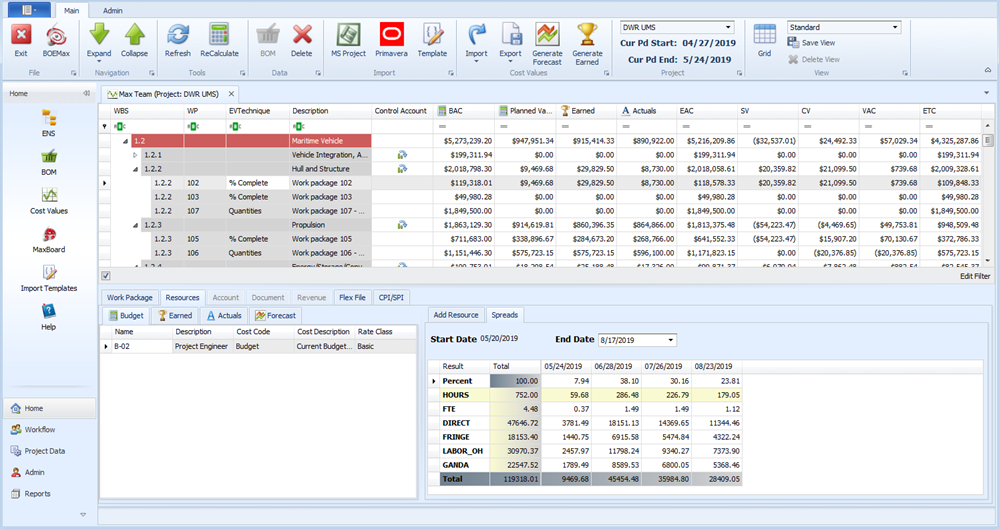
To customize your view, see Window Configuration. You may want to set which project level cost report group or results are included in the total budget value column.